
How to Make a Hotel Lobby AI Video from Two Photos
A visual walkthrough of photo uploads, left and right roles, video settings, credits and downloads, with real screenshots and practical photo tips.
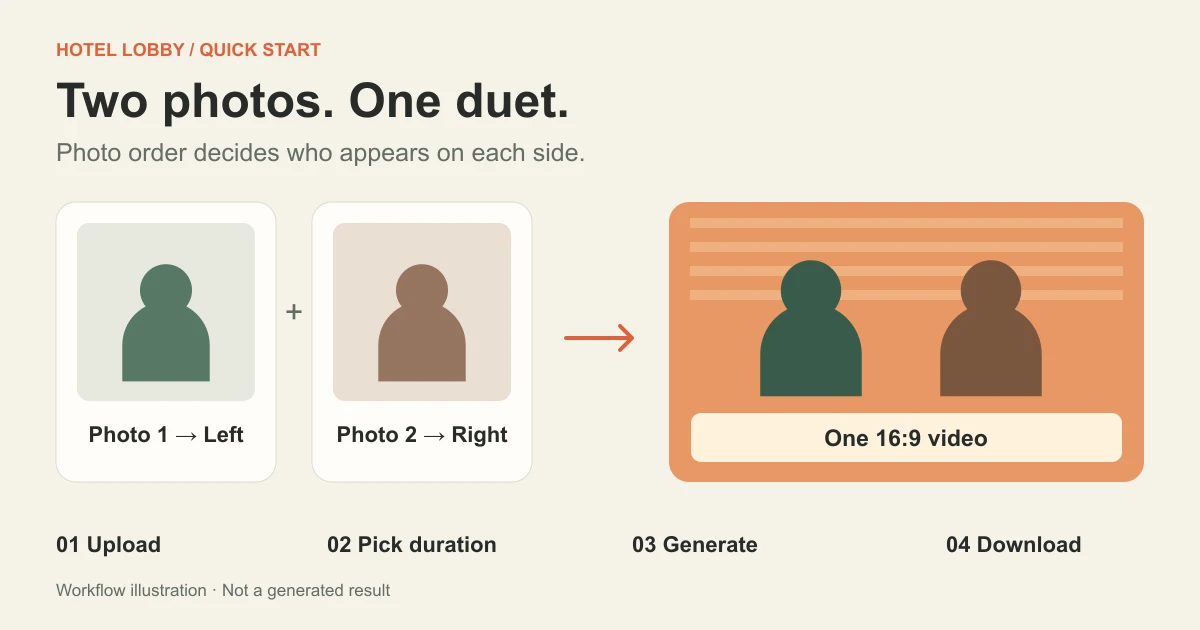
To make a Hotel Lobby AI video, upload two clear photos into the left and right slots on Hotel Lobby AI, choose a length and quality, and generate. No prompt is required. The result is a 5, 10 or 15-second, 720p landscape MP4 with the original audio. Free-credit videos have a moving watermark; a purchase unlocks watermark-free downloads for eligible videos, including ones already made.
This guide follows the actual website interface. Screenshots and prices were checked on September 30, 2026. You can open each screenshot at full size. For current offers and the final generation cost, check the generator and pricing page.
Jump to: Prepare photos · Upload · Settings and cost · Generate and download · Troubleshooting · FAQ
What kind of Hotel Lobby video will you make?
This tool uses the orange-booth Hotel Lobby performance as a fixed template: two performers, a hanging microphone and the original soundtrack. Your first photo supplies the left character and your second photo supplies the right character. The template supplies the scene and performance.
You do not need to upload a reference video, build an orange background or write a motion prompt. This also sets the boundaries: you cannot choose a different song, invent new choreography or switch the output to vertical inside this generator. If you need a custom performance, use a workflow that supports your own video reference instead.
- Prepare two clear, separate photos
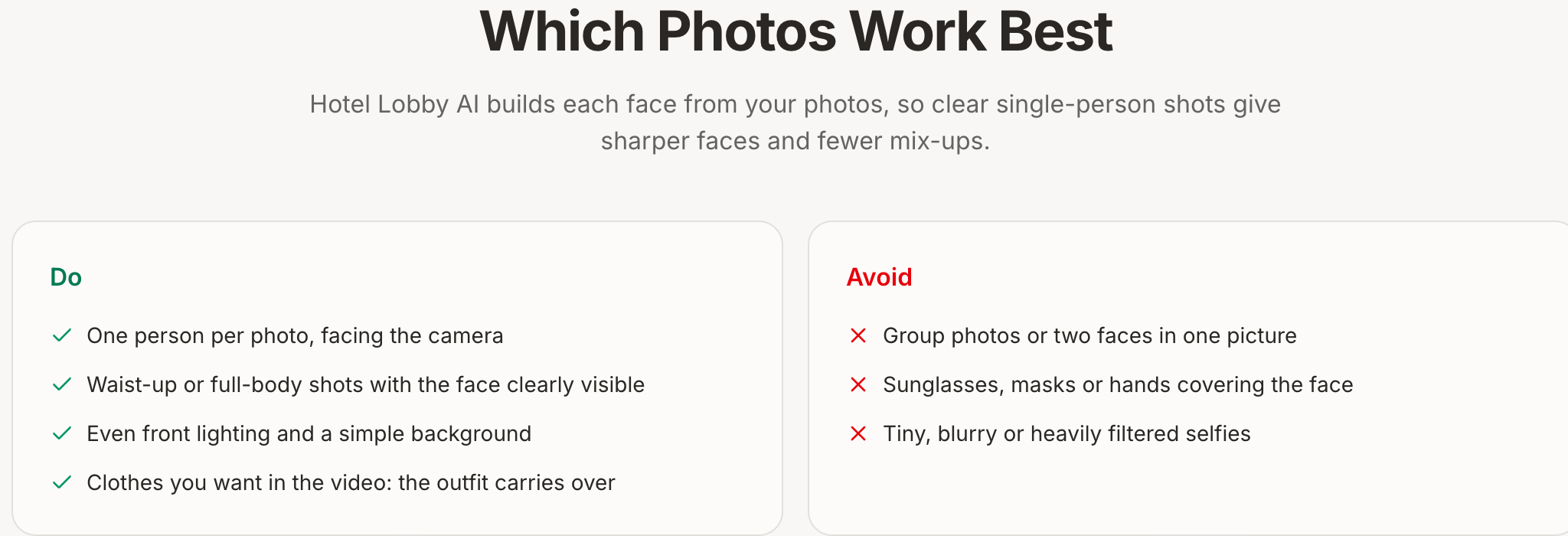
Start with one person per image. Choose a front-facing photo with even light and an unobstructed face. A waist-up or full-body picture gives the generator information about the outfit as well as the face. Use the original image rather than a screenshot of a tiny social profile picture.
- Use: a clearly visible face, simple background and the clothes you want the character to wear.
- Replace: sunglasses, masks, heavy filters, motion blur or a hand covering the face.
- Separate: a couple or group photo into two individual images before uploading. If the crops become too small, use better source photos.
- Check the file: use JPG, PNG or WebP, no larger than 20 MB. The shorter side must be at least 300 pixels; avoid extremely narrow crops or panoramas.
Use photos you have permission to upload. If you want to play both roles, you can use your own photo in both slots. Pet pairings are also supported, but a human portrait and an animal photo can produce different results; neither is a promise of exact likeness.
- Put each photo in the correct slot
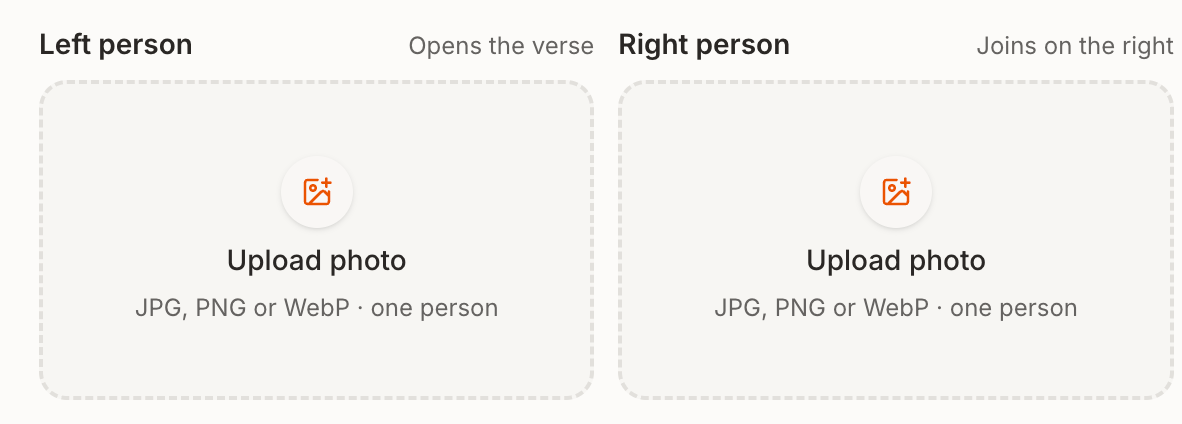
Open the Hotel Lobby generator. Select Upload photo under Left person, then choose the image for the performer who opens the verse. Add the second image under Right person.
Check both previews before continuing. A face in the wrong slot becomes the wrong performer. Replace the uploaded photos if you want to change sides; you do not need to describe the positions in a prompt.
The orange-booth video beside the controls is a template preview. It shows the reference performance for the selected duration. Your finished video appears in that area after generation succeeds; the preview itself is not a result made from your photos.
- Choose the length, quality and credit cost
Select 5s, 10s or 15s, then choose Standard or Pro. Standard costs fewer credits. Pro is the higher-cost option intended for sharper faces and smoother motion. Both output 720p; choosing Pro does not turn the export into 1080p.
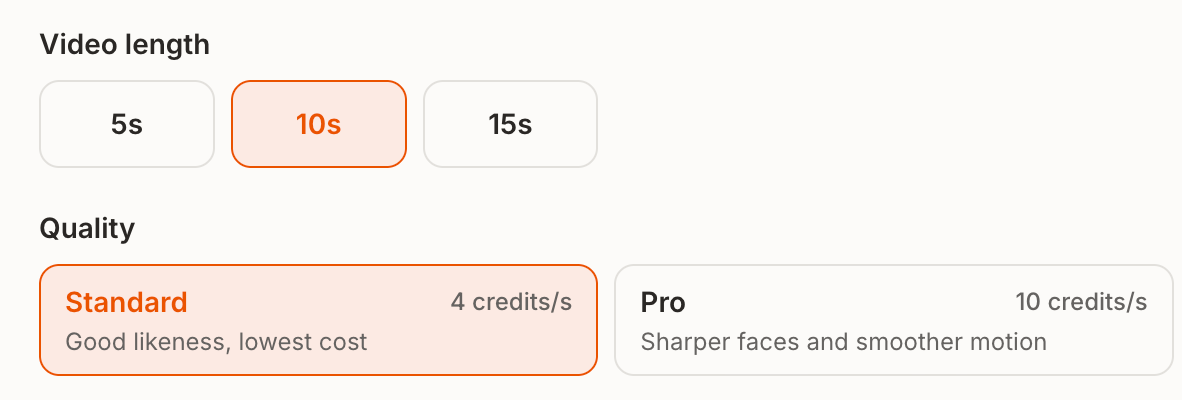
As checked on September 30, 2026, the costs are:
| Length | Standard · 4 credits/s | Pro · 10 credits/s |
|---|---|---|
| 5 seconds | 20 credits | 50 credits |
| 10 seconds | 40 credits | 100 credits |
| 15 seconds | 60 credits | 150 credits |
For a first attempt, choose 5-second Standard. The current 20-credit sign-up gift covers that combination if you have not spent it on something else. The initial 10-second selection needs 40 credits. Read the cost beneath the Generate button before submitting; it is the current quote for your selection.
For plan choices and watermark details, see Is Hotel Lobby AI free?.
- Generate, review and download
Sign in if prompted, check the two photos and cost, then select Generate Hotel Lobby video once. Uploading photos and changing the settings prepare the video; pressing Generate starts the job and uses credits.
Generation can take a few minutes and may take longer when the video service is busy. Follow the progress display rather than submitting the same attempt again. If you leave the page, check My videos while signed in to the same account.
When the result is ready, play it with sound before downloading. Check the faces when they turn, which character is on each side, the timing of the audio and any visible distortions. Then use the download control to save the MP4.
| Output | What to expect |
|---|---|
| Duration | The selected 5, 10 or 15 seconds |
| Frame | 720p, 16:9 landscape |
| Audio | The original Hotel Lobby audio for the selected length |
| Watermark | A small moving site watermark on free-account output; eligible clean downloads unlock after a purchase |
For a vertical social post, place the landscape video inside a vertical canvas in your editor. Cropping directly to 9:16 can cut off one of the performers. Label the posted clip as AI-generated. Included audio is not a blanket music license; follow the destination platform's music rules.
What should you change if something looks wrong?
The face does not look like the photo
Try a sharper, front-facing source with both eyes visible, less filtering and no facial obstruction. Change one input at a time so you can tell what helped. Pro is another option to try if your budget allows, but no quality setting guarantees a perfect face match.
The two identities seem mixed up
Check that each upload contains only one subject and that the previews show the intended people. Replace a crowded group crop with a separate portrait. Recheck the left and right slots before spending credits on another attempt.
The upload is rejected
Check the image format, file size and dimensions against the requirements above. A supported file extension alone does not fix a corrupt image or a crop that is too small. Export a fresh JPG, PNG or WebP if necessary.
The video is still processing
Look for the existing task in My videos. A slow task is not necessarily a failed task. If a generation fails, its generation credits are returned automatically. A completed video that you simply dislike is not the same as a failed generation; a new attempt uses credits again.
There is a watermark after downloading
Free-account output includes the site's moving watermark. After a purchase, return to the same account and download the eligible video again. The file you saved earlier will not change on your device. Read the watermark and existing-video explanation.
Hotel Lobby tutorial FAQ
Do I need a Hotel Lobby prompt?
No. This generator already contains the template. The controls are your two photos, duration and quality; it has no prompt field for changing the scene or song.
Can I make it completely free and without a watermark?
The current sign-up gift covers one 5-second Standard attempt. Free output has a watermark. Watermark-free downloads require a purchase. These are separate conditions, explained in the free-credit guide.
Can I make a 30-second or vertical version?
Not directly in this tool. The available lengths stop at 15 seconds and the output is 16:9. You can edit downloaded clips elsewhere, but separate generations may differ in appearance or timing.
Will it perfectly copy my face and lip movements?
No guarantee is made. Clear photos improve the input, but identity, expressions and lip sync can vary. Review your own result before sharing it.
What should I do next?
Choose two photos and open the generator. If you are trying the current free offer, select 5 seconds + Standard and confirm the displayed cost before generating.