
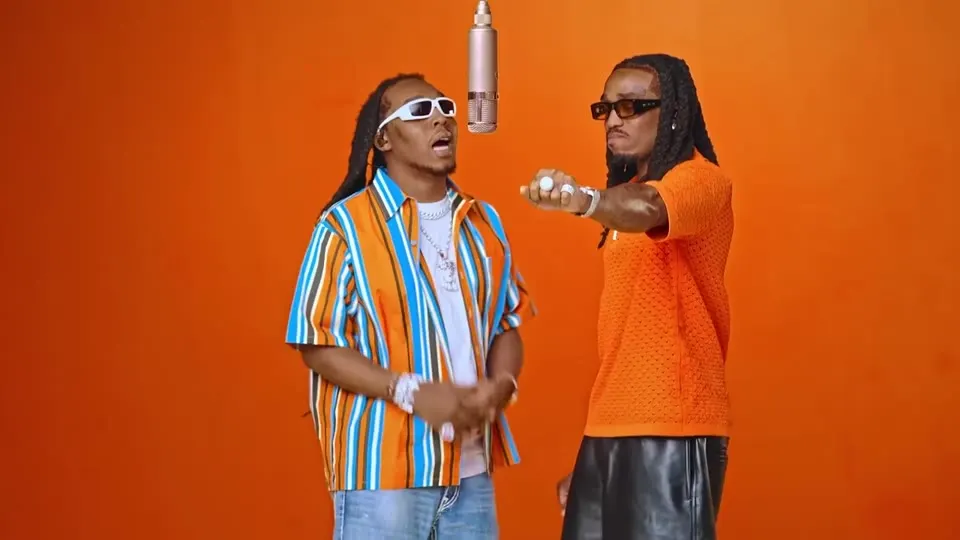
Recast a dance or trend clip
Keep the choreography and camera of a dance, sketch or trend video and put a different character in it: another person who agreed to it, a mascot, a game character or an anime hero.
Change what is in the shot. Keep the motion.
Genjutsu AI is reference-guided video-to-video editing: start from an existing clip, add up to four reference images, describe the change, and replace a character, outfit, product or background, or restyle the whole shot, while the original motion, camera movement and timing stay in place. This is an independent tool powered by Seedance 2.5 and MiniMax H3, not affiliated with Higgsfield.
Start a Genjutsu editEvery edit starts from footage you already have. Pick one kind of change; the rest of the shot is kept as close to the source as the model allows.
| Change | What you add | What changes | What stays |
|---|---|---|---|
| Character | Clip + 1–4 images of the new character | The main person or character: face, hair, body, costume | Motion, camera move, timing, background |
| Outfit | Clip + images of the clothes | Clothing and accessories | The person’s face and hair, pose, movement, shot |
| Product | Clip + images of your product | The featured product or object | Hands, camera move, timing, scene |
| Background | Clip + images of the new place | Background and environment | People, their outlines and actions, camera |
| Style | Clip + a described look (images optional) | Rendering style: anime, 3D, clay, film look | Subjects, composition, performance, timing |
Use a built-in clip or upload an MP4 or MOV up to 5 minutes. Choose 5, 10, 15 or 30 seconds and drag the window to the moment you want.
Select character, outfit, product, background or style. Add up to four reference images of what should appear; a style change can be described in words alone.
Say what changes and which image to use, for example who Image 1 replaces. Short, specific instructions work best.
Pick Seedance 2.5 or MiniMax H3 and 480p, 720p or 1080p. The credit cost is shown before you start; download the MP4 when it is ready.
Exact limits, so you know before you upload. Credits are confirmed again when you submit, and a failed generation returns them.
| Item | Value |
|---|---|
| Source video | Built-in clip, or your MP4/MOV: up to 50 MB, 5 seconds to 5 minutes, 300–4096 px per side |
| Edited length | 5, 10, 15 or 30 seconds (MiniMax H3: up to 15 seconds), starting at any second |
| Reference images | Up to 4 JPG, PNG or WebP images, 10 MB each; optional for a style change |
| Output | MP4 at 480p, 720p or 1080p (MiniMax H3: 720p or 1080p), in your clip’s shape: 16:9, 4:3, 1:1, 3:4 or 9:16 |
| Audio | The selected section’s original audio is restored; silent clips stay silent |
| Models | Seedance 2.5 video edit (default) or MiniMax H3 reference generation |
| Watermark | Accounts without a paid order get a moving site watermark; the clean original unlocks after any purchase |
| Failures | One charge per video; a failed generation or rejected material returns the credits |
| Model · resolution | 5s | 10s | 15s | 30s |
|---|---|---|---|---|
| Seedance 2.5 · 480p | 39 | 78 | 117 | 233 |
| Seedance 2.5 · 720p | 88 | 175 | 262 | 523 |
| Seedance 2.5 · 1080p | 155 | 310 | 464 | 928 |
| MiniMax H3 · 720p | 39 | 77 | 116 | — |
| MiniMax H3 · 1080p | 62 | 123 | 185 | — |
Credits come from any plan or credit pack and are shared with every tool on this site.
View credit plansSeedance 2.5 edits the selected section itself, so body motion, gestures, cuts, camera movement and framing follow the source most closely. MiniMax H3 generates a new shot that follows your clip as a reference, which allows bigger changes but can loosen exact timing. Either way the result is generated, not pixel-identical to the source.
Use a steady, well-lit clip with one clear subject, full-body images for character swaps, plain-background product photos, and one change per generation.
Keep the choreography and camera of a dance, sketch or trend video and put a different character in it: another person who agreed to it, a mascot, a game character or an anime hero.
Reuse a finished product shot, with the same hand movement and camera path, for a different bottle, box or gadget. Plain-background product photos from two or three angles help.
Show a garment on the same person in motion without a reshoot, for fashion previews, lookbooks and social posts.
Restyle a real clip as hand-drawn anime, a 3D render or claymation while the performance and shot stay the same.
Put the same performance in a neon street, a beach or a studio set, with lighting matched to the new place.
| Capability | Genjutsu-style edit | Face swap | Text or image to video |
|---|---|---|---|
| Starts from your existing clip | Yes | Yes | No |
| Keeps the original motion and camera | Yes | Yes | Generates new motion |
| Replaces the whole character, body and costume | Yes | Face only | No |
| Changes outfit, product or background | Yes | No | No |
| Restyles the whole shot | Yes | No | Yes |
Edit only videos and images you have the rights to use. Anyone recognizable must be an adult who agreed to the edit, and content must stay non-sexual. Label AI edits as AI-made when you share them, and do not use the tool to impersonate or deceive.
Reference images of people and the selected clip go through the provider’s asset review before Seedance 2.5 generation; rejected material stops the job and returns the credits. These checks are not a guarantee of safety or permission, and there is no separate review of the finished video.
Genjutsu AI is the name people use for reference-guided video-to-video editing: you keep an existing clip’s motion, camera movement and timing, and change what is in it, such as the character, outfit, product, background or art style. On this page you upload or pick a clip, add reference images, describe the change and download an MP4.
No. This is an independent tool and is not affiliated with, endorsed by or operated by Higgsfield. It runs Seedance 2.5 video editing and MiniMax H3 through this site’s own pipeline, with its own credits and limits.
Yes. Choose Character, add one to four images of the new character, and say who they replace. Seedance 2.5 edits the source section, so the dance or action, camera move and timing follow the original closely. Fast spins, hands and very different body shapes can still drift, so check the whole result.
Yes. Choose Product and add clear images of your product, ideally on a plain background from more than one angle. The hand movement, camera path and timing are kept. Tight finger grips, fast rotation and small label text are the hardest parts and may change for a few frames.
Yes. Choose Style and describe the look, such as hand-drawn anime or a 3D render; you can add example images. The subjects, composition and performance are kept and only the rendering style changes.
Upload a clip from 5 seconds to 5 minutes, up to 50 MB, then choose a 5, 10, 15 or 30 second section starting at any second. Seedance 2.5 supports all four lengths; MiniMax H3 supports up to 15 seconds.
Yes. Seedance 2.5 outputs 480p, 720p or 1080p and MiniMax H3 720p or 1080p. The result keeps your clip’s shape, snapped to 16:9, 4:3, 1:1, 3:4 or 9:16, so a vertical phone clip at 1080p comes back as 1080×1920.
Seedance 2.5 at 720p costs 88 credits for 5 seconds, 175 for 10, 262 for 15 and 523 for 30. At 1080p a 10-second edit costs 310. MiniMax H3 at 720p costs 77 credits for 10 seconds. The generator shows the exact quote for every choice, and a failed generation returns its credits.
Accounts without a paid order get a moving site watermark. The clean original is stored privately, and the same video downloads without the watermark once you have bought any plan or credit pack.
Start with Seedance 2.5: it edits your clip directly and keeps motion and framing closest to the source, up to 30 seconds. Try MiniMax H3 for shorter clips when you want a bigger transformation and accept looser timing.
Pick a clip, add your references and see the edit in a few minutes. The quote is shown before you generate.
Open the Genjutsu AI editor